
Introduction
If your computer suddenly stops recognizing a USB device, your keyboard behaves strangely, or your printer refuses to work, you’re likely facing a hardware issue. Fortunately, Windows includes a built-in solution—the hardware and devices troubleshooter—designed to automatically detect and fix common problems.
In this complete guide, you’ll learn how to run the hardware and devices troubleshooter in Windows 11, fix everyday device issues, and explore Lesson 11: testing and troubleshooting electrical devices and PLC hardware for a deeper technical understanding.
What Is the Hardware and Devices Troubleshooter?
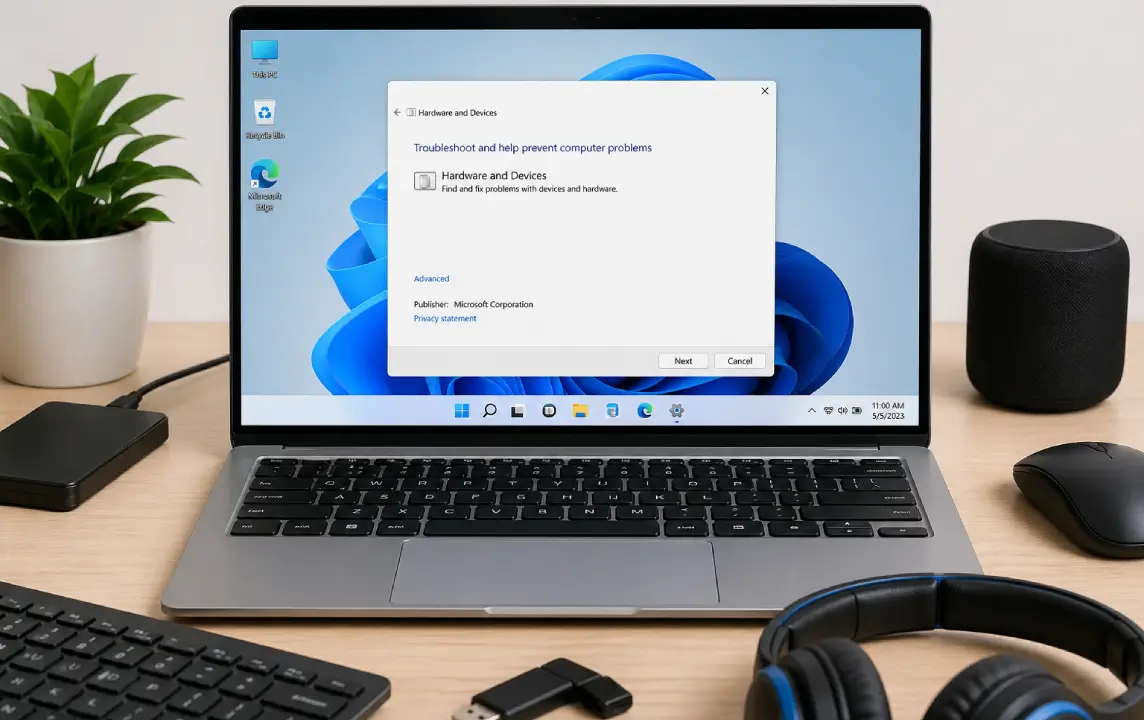
The Windows hardware and devices troubleshooter is a built-in diagnostic tool that scans your system for hardware-related problems. It can identify issues with drivers, connected devices, and system settings, then apply automatic fixes.
Key Features
- Detects faulty or misconfigured devices
- Fixes driver-related problems
- Resolves USB, Bluetooth, and peripheral issues
- Works automatically with minimal user input
Why Use the Hardware and Devices Troubleshooter?
Many users ignore built-in troubleshooting tools and jump straight to complex fixes. That’s a mistake. This troubleshooter can quickly resolve:
- USB devices not recognized
- Audio devices not working
- Bluetooth connectivity issues
- Printer and scanner errors
- External hardware malfunctions
Using it first can save time and prevent unnecessary system changes.
How to Run the Hardware and Devices Troubleshooter in Windows 11
Unlike older versions of Windows, this tool is slightly hidden in Windows 11. Follow these steps carefully:
Method 1: Using Run Command
- Press Windows + R to open the Run dialog box
- Type the following command:
msdt.exe -id DeviceDiagnostic - Press Enter
- Click Next to start the scan
- Follow on-screen instructions to apply fixes
Method 2: Using Settings (Alternative Tools)
While the original troubleshooter is hidden, you can also use:
- Go to Settings > System > Troubleshoot > Other troubleshooters
- Run tools like:
- Bluetooth troubleshooter
- Audio troubleshooter
- Printer troubleshooter
Common Problems Fixed by the Troubleshooter
1. USB Device Not Recognized
The troubleshooter checks USB ports and drivers, reinstalling or updating them if needed.
2. No Sound Issues
It detects audio driver problems and fixes incorrect configurations.
3. Bluetooth Not Working
It identifies pairing issues and resets Bluetooth services.
4. Device Driver Errors
Outdated or corrupted drivers are automatically repaired or reinstalled.
Manual Troubleshooting Tips (If Tool Doesn’t Work)
Sometimes, the troubleshooter may not fix everything. Try these additional steps:
Update Drivers
- Open Device Manager
- Right-click the device
- Select Update driver
Restart Hardware
- Unplug and reconnect external devices
- Restart your computer
Check Windows Updates
- Go to Settings > Windows Update
- Install latest updates
Use Device Manager Scan
- Click Scan for hardware changes
Lesson 11: Testing and Troubleshooting Electrical Devices and PLC Hardware
Beyond Windows troubleshooting, understanding hardware troubleshooting at a deeper level is essential—especially for engineers and technicians working with PLC (Programmable Logic Controller) systems.
What Is PLC Hardware?
PLC hardware is used in industrial automation to control machines and processes. It includes:
- Input modules (sensors, switches)
- Output modules (motors, relays)
- CPU (central processing unit)
- Power supply
Common PLC Hardware Issues
1. Power Supply Failure
- PLC not turning on
- Caused by voltage fluctuations or faulty wiring
2. Input/Output Module Faults
- Sensors not responding
- Outputs not activating
3. Wiring Problems
- Loose or damaged connections
- Incorrect wiring setup
4. Communication Errors
- PLC not communicating with other systems
- Network or cable issues
Steps to Test and Troubleshoot PLC Hardware
Step 1: Visual Inspection
- Check for burnt components
- Inspect wiring and connections
Step 2: Power Supply Check
- Use a multimeter to verify voltage levels
- Ensure stable power input
Step 3: Input Device Testing
- Activate sensors manually
- Check if PLC receives signals
Step 4: Output Testing
- Force outputs via PLC software
- Verify if devices respond
Step 5: Software Diagnostics
- Use PLC programming tools
- Check error logs and status indicators
Tools Used in Electrical and PLC Troubleshooting
- Multimeter
- Oscilloscope
- PLC programming software
- Diagnostic tools
- Circuit testers
Best Practices for Hardware Troubleshooting
Stay Systematic
Always follow a step-by-step approach to avoid confusion.
Start Simple
Check basic issues like loose cables before complex diagnostics.
Document Issues
Keep records of problems and solutions for future reference.
Use Proper Tools
Avoid guessing—use accurate testing equipment.
Windows vs PLC Troubleshooting: Key Differences
| Feature | Windows Troubleshooter | PLC Troubleshooting |
| Automation | Automatic fixes | Manual + software-based |
| Skill Level | Beginner-friendly | Technical expertise required |
| Tools Used | Built-in software | Multimeter, PLC tools |
| Environment | Personal computers | Industrial systems |
Conclusion
The hardware and devices troubleshooter in Windows 11 is a powerful yet underused tool that can quickly resolve many common device issues. By learning how to run it and combining it with manual troubleshooting methods, you can fix most hardware problems without professional help.
At the same time, understanding Lesson 11: testing and troubleshooting electrical devices and PLC hardware gives you deeper technical knowledge, especially useful in industrial environments.
Whether you’re a beginner fixing a USB issue or a technician working with PLC systems, mastering troubleshooting skills is essential in today’s technology-driven world.
FAQs
1. Is the hardware and devices troubleshooter available in Windows 11?
Yes, but it’s hidden. You can access it using the Run command:
msdt.exe -id DeviceDiagnostic
2. Can this tool fix all hardware issues?
No, it fixes common problems. Complex issues may require manual troubleshooting.
3. What is PLC hardware used for?
PLC hardware is used in industrial automation to control machines and processes.
4. What is the first step in troubleshooting electrical devices?
Start with a visual inspection and check the power supply.